How to: Quickly back up your website.
Recently, I’ve been using a new method to back up my website, which I thought I would share with you.
Now, technically, you don’t need to make a backup of a Squarespace website because these are taken care of passively in the background, but I think it is always better to be safe than sorry. Also, you can use this method for any website you have regardless of platform, etc.
So, I usually back up my website in a few different ways to be extra cautious.
These are:
Take a WordPress backup by downloading an “.xml” file from Squarespace.
Make sure I keep hard copies of my website content on my computer (the best way to do this is to generate new content in a text editor separate from your website).
Take screenshots of my website page design in case I accidentally delete a page and need to redo it.
A new way to back up.

Use the Live Text icon to interact with content in a photo or video on an iPhone.
However, recently, I came across another quicker and more convenient way to extract text and reference the design simultaneously, which uses the third method above and extends it: taking screenshots of my website pages.
I know what you’re thinking; taking a screenshot of the website will only give you a raster image (.png). And you can’t extract the text from a raster image because it’s just pixels, right?
You indeed couldn’t a while back, but now, many applications can pull text directly off images.
On your iPhone.
I recently got a new phone (iPhone 15). In the Apple Photos app, a small icon appeared in the bottom right corner when looking at images that included text.
If you click this icon, the text contained in the image becomes highlighted, and you can copy and paste it from the image into a word processor or text editor, etc.👇
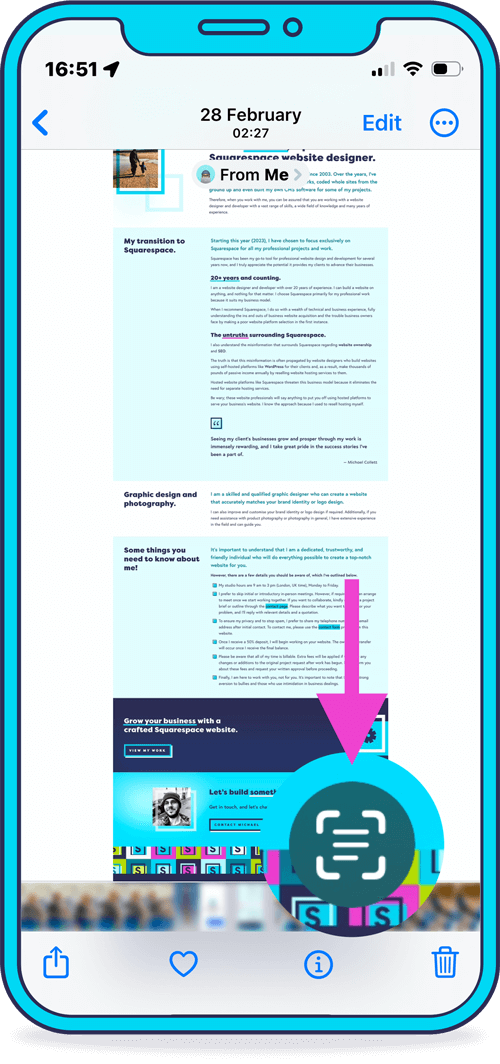
Location of the Apple Live Text button on iPhone (iOS).
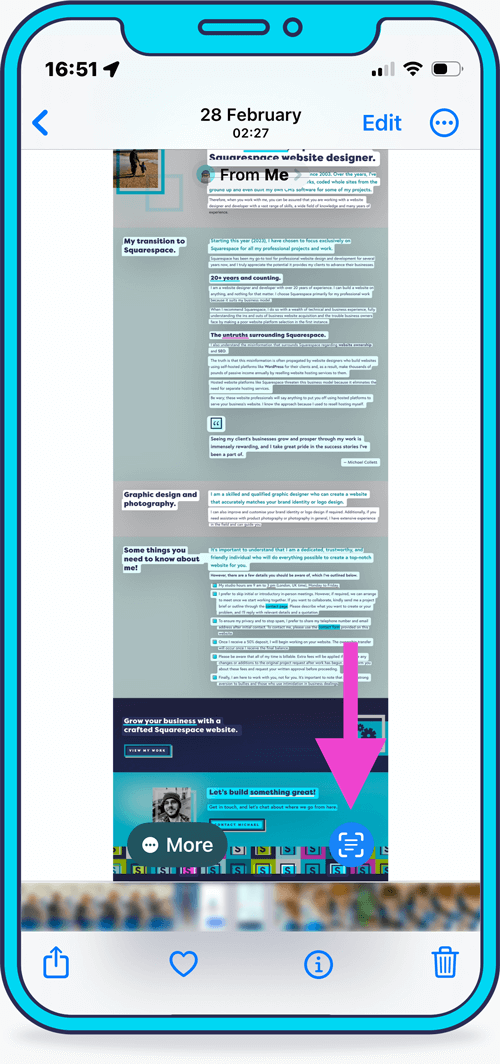
Once touched, the Live Text button detects and highlights text within the image.
It’s a very convenient way to back up.
Extracting text from the image effectively makes your original screen grab a live text backup of your website’s page content. Brilliant!
Using a screenshot plugin.
You can use a screenshot plugin like GoFullPage for quick and effortless screen grabs of your website pages.
Plus, using screen grabs of your website pages in this way means you can make minor text edits directly on your website without having to write them first using a word processor or text editor—something I would have said a while ago not to do.
I can take a screenshot before I make the change, which gives me version control (of sorts).
And, of course, this method also gives you a visual copy of the website’s page design and layout, just in case you ever need to recreate it.
Android version.
I don’t have an Android phone, so I don’t know if there is a native way within the phone’s operating system to do this, but I did find a link to this app on the Google Play Store. As I have not used it, I don’t want to add it here, but if you search the store, you will find it and similar applications.
Summary.
I hope you found this a helpful tip for backing up your website’s content and design.
Please get in touch with me if you have any questions or want to learn more about my Squarespace website design services.
Don’t forget.
If you liked this tip and want more, don’t forget to sign up for my newsletter. I will also give discounts on my Squarespace Template Shop for early subscribers.
Apple reference:
https://support.apple.com/en-gb/guide/iphone/iph37fdd714b/ios